

Most admin dashboard templates look polished in their demos. The charts are full, the tables
are populated, and every screen feels alive. Then you connect real data, invite your first users,
and discover the screens no one designed carefully: the empty project list, the first-login
welcome screen, the password reset page, and the “no results found” message.
These moments matter more than they seem. They are often a user’s first impression of your
product, and they shape whether people feel confident, confused, or ready to leave. Custom
illustrations are one of the simplest ways to make them feel intentional.
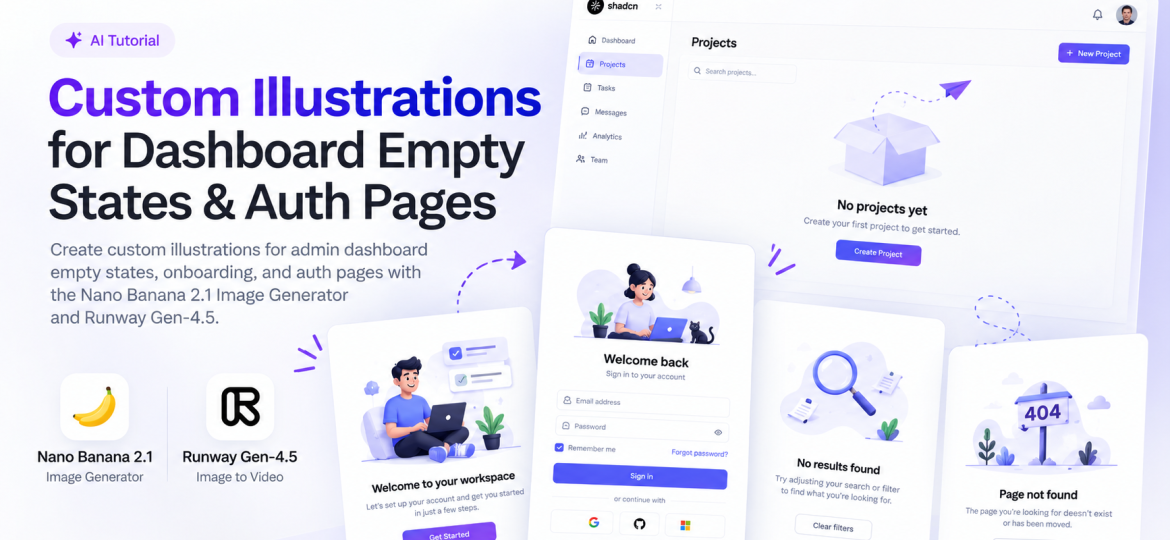
This guide walks through a practical process for creating custom illustrations for admin
dashboard empty states, onboarding flows, and authentication pages. You will learn how to plan
the screens, build a consistent visual style, generate illustrations with AI, add subtle motion, and
implement everything with performance and accessibility in mind.
Why Custom Illustrations Matter in Admin Dashboards
Dashboards are built for efficiency, so visuals can seem like decoration. In practice, they do real
work.
Empty states are a good example. When a new user opens a blank screen with no explanation,
they may assume something is broken. A thoughtful illustration paired with a clear message and
a call to action turns that blank space into guidance. It tells users what belongs there and how to
get started.
Onboarding screens benefit in a similar way. Illustrations make multistep setup flows feel lighter
and help users understand concepts quickly. Authentication pages, meanwhile, are often the
first branded screen a user sees. A custom visual on the login or registration page signals that
the product is maintained and trustworthy.
There is also a branding advantage. Many teams start from premium templates such as
PixInvent’s Vuexy or Materialize, which ship with illustrated login, registration, and error pages.
Those defaults are well designed, but they are also widely used. Replacing them with custom
artwork that matches your brand makes your product feel distinct.
Where Illustrations Appear in a Typical Dashboard
Before creating anything, it helps to know where illustrations usually appear. Most dashboards
include four main categories.
Empty states appear when there is no data yet, when a search returns no results, when a user
has completed every task, or when a feature has not been set up. Each scenario needs a
slightly different message and visual.
Onboarding screens include welcome modals, setup checklists, product tours, and feature
introductions. These often appear as a short sequence, so visual consistency across steps is
especially important.
Authentication pages include login, registration, forgot password, reset password, email
verification, and two-factor authentication screens. Many templates offer layouts with a large
illustration beside the form.
Error and status pages include 404 pages, 500 errors, maintenance notices, access-denied
screens, and “coming soon” placeholders.
Step 1: Audit Every Screen That Needs an Illustration
Start with a complete inventory. Open your dashboard, walk through every flow as a brand-new
user, and list each screen that could use a visual. Note the screen name, its purpose, the
message it needs to communicate, and its placement and size.
This audit often reveals more screens than expected. A typical SaaS dashboard can easily need
15 to 25 illustrations once you account for every empty state, auth step, and error page.
Knowing the full scope upfront helps you plan a consistent series rather than producing one-off
images that do not match.
Step 2: Define a Visual Style System
Consistency is what separates a professional illustration set from a collection of random images.
Before generating anything, define the style rules every illustration must follow.
Choose an illustration style that fits your product, such as flat vector, soft 3D, isometric, or
minimal line art. Pick a color palette based on your template’s primary, secondary, and neutral
colors, and write down the exact hex values. Decide on character usage, perspective, line
weight, level of detail, and background treatment.
Keep the style simple. Dashboard illustrations are usually viewed at small or medium sizes,
often beside dense interface elements. Clean shapes and limited detail read better than
complex scenes.
Document these decisions in a short style guide. It becomes the foundation for every prompt
you write and makes it easier for teammates to create matching artwork later.
Step 3: Write a Reusable Prompt Template
AI image generators produce the most consistent results when prompts follow a fixed structure.
Turn your style guide into a template with a placeholder for the subject.
A practical template might read: “Flat vector illustration, soft rounded shapes, minimal detail,
primary color #4F46E5, secondary color #22C55E, light gray accents, clean white background,
no text, centered composition with generous padding. Subject: [describe the scene].”
Then fill in the subject for each screen. For an empty projects page, the subject might be “an
empty folder with a small plus icon floating above it.” For a password reset screen, it might be “a
padlock with a circular arrow, suggesting renewal and security.”
Notice the “no text” instruction. Even though modern models render text well, labels inside
images cannot be translated, resized, or read by screen readers. Keep all interface copy in
HTML and let the illustration provide visual context.
Step 4: Generate Your Illustrations
With your style system and prompt template ready, you can start generating artwork. Google
released Nano Banana 2.1 on October 6, 2026, as an update to Nano Banana 2, and it is well
suited to this kind of work. It supports high-resolution output, follows detailed prompts closely,
and is designed to keep visuals consistent across a batch, which matters when you need 20
illustrations that look like they belong together.
Using the Nano Banana 2.1 Image Generator on ImagineArt, you can apply your prompt
template to each screen, add reference images to guide the style, and refine individual details
through conversational edits instead of starting over. A practical approach is to generate your
first three illustrations, review them side by side, and adjust the template before producing the
rest of the set.
Reference images are useful for consistency. Once you have one illustration that perfectly
captures your style, use it as a reference for every new image. This keeps colors, shapes, and
level of detail aligned across the entire series.
Review each result carefully. Check that the illustration matches the screen’s purpose, that
colors align with your palette, and that nothing in the image looks distorted or off-brand.
Step 5: Create Light and Dark Mode Variants
Most modern admin templates support both light and dark themes, so your illustrations need to
work in both.
The simplest approach is to generate illustrations on a transparent background, or remove the
background afterward with a background removal tool if your generator does not output
transparency. Then test each image against both your light and dark surface colors. Some
illustrations will work in both themes without changes. Others will need a dark variant with
adjusted colors so key shapes remain visible.
When creating dark variants, use your style guide’s dark palette and reference the original light
version so the composition stays identical. Swap images by theme in your code rather than
relying on CSS filters, which can distort colors unpredictably.
Step 6: Add Subtle Motion Where It Helps
Motion can make onboarding screens and empty states feel more welcoming, but it should be
used sparingly. A gentle animation on a welcome screen can delight users, while constant
motion across a dashboard quickly becomes distracting.
AI video models now make it practical to animate your existing illustrations without hand-
building animations. With Runway Gen-4.5 on ImagineArt, you can turn a finished illustration
into a short clip, such as a floating folder, a softly pulsing checkmark, or a padlock gently
clicking shut. Keep every clip short, seamless, and very subtle.
Runway Gen-4.5 works best for hero moments, such as a welcome modal or a first-run
onboarding screen. For small interface states, a static image is usually better.
Always respect users who prefer reduced motion. A simple pattern is to use the static illustration
as the video’s poster and load the animation only when motion is acceptable:
<video class=”welcome-anim” muted loop playsinline
poster=”welcome-static.webp” data-src=”welcome-loop.mp4″
width=”480″ height=”360″ aria-hidden=”true”></video>
<script>
const video = document.querySelector(‘.welcome-anim’);
const reduce = window.matchMedia(‘(prefers-reduced-motion: reduce)’).matches;
if (!reduce) {
video.src = video.dataset.src;
video.play().catch(() => {});
}
</script>
Users who prefer reduced motion see only the static poster, and the video file is never
downloaded for them. Export clips in MP4 or WebM and keep them as small as possible.
Step 7: Export and Optimize for Performance
Illustrations should never slow down your dashboard. Export images in modern formats such as
WebP or AVIF, and size them for the space they occupy. An empty-state illustration displayed at
240 pixels wide does not need a 2000-pixel source file. Exporting at roughly twice the display
size keeps images sharp on high-density screens without unnecessary weight.
Auth page illustrations deserve special attention because they often appear on the first screen a
user loads. Compress them carefully, include width and height attributes to prevent layout shift,
and avoid lazy loading images that appear above the fold.
On small screens, many auth layouts hide the illustration entirely. If you hide it with CSS alone,
the browser may still download the image. Instead, render it conditionally in your framework or
load it as a CSS background inside a media query so mobile users do not download artwork
they never see.
Step 8: Implement Illustrations Accessibly
Most dashboard illustrations are decorative. They support the message but do not add
information that is not already in the text. For these images, use an empty alt attribute so screen
readers skip them.
If an illustration conveys meaningful information, write concise alt text that describes its
purpose. Never rely on the illustration alone to communicate an empty state or error. The
heading, explanation, and call to action must always be available as text.
Writing Copy That Works With Your Illustrations
An illustration is only half of a great empty state or onboarding screen. The copy does the rest.
Follow a simple structure. Start with a short heading that explains the situation, such as “No
projects yet.” Add one sentence that explains the value of taking action, such as “Create your
first project to start tracking tasks and deadlines.” Then include a single, clear call to action,
such as “Create Project.”
For error pages, be honest and helpful. Explain what happened in plain language and offer a
way forward, such as returning to the dashboard or contacting support. For auth pages, keep
copy minimal so users can focus on completing the form.
Common Mistakes to Avoid
- Mixing illustration styles. Inconsistent artwork makes a dashboard feel unfinished.
- Adding text inside images. Interface copy belongs in HTML for accessibility and
localization. - Ignoring dark mode. Illustrations that disappear on dark backgrounds create broken-
looking screens. - Overusing animation. Motion should highlight key moments, not compete with the
interface. - Exporting oversized files. Large images slow down auth pages and onboarding flows.
- Replacing copy with visuals. Every empty state still needs a clear message and call to
action.
Frequently Asked Questions
Should dashboard illustrations be SVG or raster images?
SVG is ideal for simple vector artwork because it scales perfectly and is often small. AI-
generated illustrations are typically raster images, so export them as WebP or AVIF at
appropriate sizes.
Can I use AI-generated illustrations in commercial products?
Review the terms of service for the model and platform you use, since licensing terms can vary.
Final Thoughts
Empty states, onboarding screens, and auth pages are easy to overlook, but they shape how
users feel about your product from the very first login. Custom illustrations turn those moments
into clear, branded experiences.
Start with an audit, define a consistent style, build a reusable prompt template, and generate
your series with the Nano Banana 2.1 Image Generator, reviewing every result carefully. Add
motion only where it helps, optimize every file, and implement each image with accessibility in
mind. The result is a dashboard that feels thoughtfully designed, even before users add their
first piece of data.
